


You can access the list of items/products/goods that cannot be delivered via the Lalamove application in the Notice on Prohibited Items for Transportation. If you have any questions about whether the items you wish to send are eligible for delivery, please contact us.
FAQs

General
How can I create a business account?
With a corporate account, you can manage your deliveries in a more professional and organized way. Simply open the Lalamove app, go to the side menu, navigate to the “Settings” section, click on “Add a Free Business Profile,” and fill in the required information. Designed especially for businesses that make regular shipments, the corporate account allows you to manage your operations more securely and efficiently right away!
General
Will I be assigned a dedicated account manager?
Yes, a dedicated account manager is assigned to business accounts. Your account manager supports you with order management, operational assistance, and process optimization, helping you manage your operations more easily and efficiently.
General
What are the advantages of creating a business account?
With a business account, you can manage your logistics operations more efficiently and conveniently. Some of the key advantages include:
Bulk and easy order management: Create and track multiple deliveries from a single place.
Dedicated support: Get assistance throughout your ordering process via your account manager.
Promotions and benefits: Enjoy access to occasional promotions, coupons, and special offers.
API integration: Automate your operations by integrating your systems with Lalamove.
Goods protection program: Benefit from protection coverage for eligible accounts and deliveries.General
Which industry does Lalamove support?
Lalamove helps businesses from a wide variety of industries with their delivery needs. From F&B and eCommerce to retail, furniture, construction and many more, we've got the delivery solutions and the fleet of vehicles on standby that you need to help grow your business.
General
Do you provide monthly statement?
To automatically receive Statement for each month, kindly activate the Receive monthly statements by email function under your setting page in Notification category on web. Add the recipient email below to receive the statement. You may also download Statement under your setting page in Statement category on web.
General
How can Lalamove help boost my business?
Keep track of your delivery expenses: Manage multiple staff members under a single business account with a centralised business wallet. Monitor your corporate accounts spending with ease through monthly statements. Take control of your spending!
Reduce operational costs: without your own fleet of vehicles and team of drivers, you get to save on the vehicle purchasing cost, the vehicle maintenance fees and overheads that come with employing drivers on a full- or part-time basis.
Save even more with multi-stop at up to 20 different locations within one trip!
Term and Account Management
How to edit corporate account details (address, tax ID,...)?
To update your corporate account information, please reach out to your Sales Representative.
Term and Account Management
How to add teammates to my business account?
Users with Admin role in the corporate account can invite a new or existing user to join your business account via Email. Kindly tap the button Invite new member under setting page in Team category on web, enter the email address of the new teammate. New teammate will be added to your corporate account after he/she finish the steps in the invitation email.
Term and Account Management
How can different teammates access different order records? How can I access all order records in my corporate account?
Users with Admin or Manager role can view all order history on the corporate account. Users with Employee role can only view orders placed by him/her. You can view the role of all teammates under setting page in Team category on web.
Term and Account Management
I would like to claim damaged or lost goods (Business Account only)
Qualified corporate customers are eligible to claim for damaged or lost goods within 7 days of delivery completion.
Find out more about our Goods Protection policy, and terms and conditions.
General
What is Lalamove's Customer Service's hours?
Our customer service time are as follows:
Monday - Sunday: 9am - 6pm
Monday - Sunday: 9am - 6pm
API Integration
What is API integration?
With our own Application Programming Interface (API), you can connect your system directly with Lalamove and create orders automatically without manual input in the app.
In simple terms, an API allows your system to communicate with Lalamove, helping you automate your order processes.
With Lalamove API solutions, you can save time and manpower while growing your business more efficiently!
API Integration
Is integration between Lalamove and online stores possible?
With API integration, it is possible to connect with many online stores. For more detailed information, you can get in touch with your account manager.
API Integration
Which features are available for API integrations?
With our automation features, you can make your operations faster and more efficient:
-
Get instant delivery fee quotes
-
Create orders in just one click
-
Easily cancel orders when needed
-
Track driver details and location in real time
-
Check order status anytime
-
Add tips to prioritize your orders
-
Receive real-time updates through automatic notifications
With these features, you can manage your operations effortlessly, save time, and run your business more efficiently!
API Integration
Can your API handle multi-stop orders?
Yes, users can easily create multi-stop orders via the API! Please note that the order in which you add the stops will be the route the driver follows.
API Integration
Will I be notified when there is an order status change via API?
Yes. Whenever there is an update to your order (for example, when a driver is assigned or the delivery starts), our system will automatically notify you. This way, you can easily track the entire process without needing to check manually!
API Integration
Is there someone I can reach out to for technical support?
We’re always happy to support you in finding the best solution for your needs. For any technical or process-related questions, you can easily reach out to your account manager or contact us at info.tr@lalamove.com
General
What is Lalamove?
Lalamove is a 24/7 On-Demand Delivery App that provides reliable, effective, and affordable delivery solutions. Through dedicated mobile and web apps, Lalamove seamlessly connects users and drivers across Istanbul to deliver faster!
General
What are the service coverage areas?
For now, we deliver to anywhere and everywhere within Istanbul's European and Anatolian sides. Stay tuned for new service area updates!
General
What are Lalamove's delivery hours?
Lalamove operates 24/7 to best serve your needs. We specialise in on-demand delivery and same day courier service, matching you with nearby drivers in just a matter of seconds.
Use Lalamove to handle all your express and urgent deliveries, anytime of the day.
General
How to place an order on the web application?
Simply go to https://web.lalamove.com/ and log in to your account. You will then be able to make on order from there!
General
I would like the recipient to pay the order.
Yes you may have the recipient to pay the order, simply indicate in the remarks to tell the driver that the amount will be collected at the drop off location. Please ensure that you have chosen cash as the payment method!
Placing an Order
How to place an order?
Follow the steps to place an order:
1 - Input the address for pick up and drop off
You may choose to make it as an immediate order or a scheduled order based on your needs
- Immediate order: Driver will pick up the delivery as soon as possible
- Scheduled order: You may select pick up time based on your preferred schedule up to 30 days
If you need to add multiple stops, simply click on the "+ Add Stop" button to add a stop. You may add up to 20 stops within the same order
2 - Select the vehicle type
Evaluate the size of your delivery, and select the vehicle type your want.
If you are unsure of the capacity of each vehicle type, click on the information button on the top right corner for the details
3 - Select any additional service
You may also request for add-on services (such as adding Loading/Unloading Service) based on your needs
4 - Add in any reference and confirm the booking
If there are any reference information you may want to provide to the driver, you may add it in the next page! Confirm the contact information and select your payment method. If you have a coupon and discount code, you may also add it there.
Once everything is good to go, just click on "Place order" and we will match you with a driver
Placing an Order
How to schedule an order?
Mobile
APP To schedule an order, simply click on the "Pick-up time" on the order placing page and select "Later". You will then be able to select the pick up time based on your preferred schedule up to 30 days
Web
To schedule an order, simply click on the “Scheduled" button after inputting the order details. You will then be able to select the pick up time based on your preferred schedule up to 30 days
Placing an Order
What should I check before placing my order?
Prepare your package carefully: Make sure your item is securely and appropriately packed to help protect it during transportation.
Choose the right vehicle: Select a vehicle that matches the size and weight of your delivery. You can review available options via clicking here.
Enter the address details accurately: Provide a clear and detailed address to support accurate and timely delivery. You can also add directions or notes if needed.
Add package details: Sharing information about your shipment (e.g., contents, size) helps everything move along more efficiently.
Don’t forget contact information: Ensure both sender and recipient contact details are correct so communication can be made easily if needed.
By following these steps, you can create your delivery more quickly and securely!
Placing an Order
What should I check at the pickup point?
To keep things running smoothly during pickup, please keep the following in mind:
Verify the courier details: Check that the vehicle’s license plate matches the information in the app to confirm it’s the correct courier.
Check and have your package ready: Make sure your shipment is correct, complete, and ready before handing it over to the courier.
Ensure proper packaging: Double-check that your package is securely packed to help protect your items during transport.
By paying attention to these points, you can help your delivery get off to a safe start!
Placing an Order
How to place an order with more than one dropoff location?
Simply click on the "+ Add Stop" button to add additional dropoff locations. You may add up to 20 locations in one order.
You may also drag and rearrange the sequence of the dropoff locations based on your needs!
Placing an Order
How can my favourite driver pick up my order?
If you have a favourite saved in your account, you may request your favourite driver to pick up your order first. However, if none of your favourite driver is online or available, your order may be picked up by another driver.
Mobile APP
At "Add more details" page, turn on the "Favourite drivers first" button and your order will be seen by your favourite driver first.
Web
Check the "Assign to favorite driver only" in the "Notes to driver section" under the notes text field.
Placing an Order
How to contact the driver?
Once you are matched with a driver, you will be able to see the details of the driver. Your driver will also contact you via phone call to confirm the confirmation. Should you want to reach out to the driver again, you may also contact them via the app in the order details.
Mobile APP
Underneath the driver details you may click on the "Chat" or "Call" button to use the in-app chat to chat with the driver or call the driver directly.
Web
You may chat with the driver directly. You may also refer to the driver's phone number listed in the Order Details panel and contact the driver via your phone.
Placing an Order
How to check user and driver chat in the app?
Same as how to contact my driver
Placing an Order
How long will the driver take to arrive at the pickup location?
Once an order has been successfully matched, you will be able to see an estimated arrival time on the map. Once the driver has picked up your delivery, the time listed will be the estimated arrival time to the drop off location.
Please note that the time listed is only for reference and may be changed due to unforeseeable reasons such as traffic and weather issues.
Placing an Order
How to check delivery status?
You will be able to check the location of the driver via the order page. You may see where your driver is in real time and get notified instantly when the delivery has been completed.
You can even send the tracking information to your customer by clicking the share button on the order page, so they know the delivery status and the estimated time of arrival.
Placing an Order
What are the delivery status?
Each status shows the status fo the delivery at real time. Some of the statues that may appear on your order are:
On the mobile app
Finding a driver --> We are currently matching a driver for your order
Awaiting Driver --> Your order has been matched with a driver and the driver is heading to pick up point
In transit --> The driver has arrived at the pick up point
Delivering --> The driver has arrived at the drop off point
Confirming Bill --> Driver has finished unloading and is confirming the final bill
Settle Bill --> The driver has sent the final bill
Completed --> The delivery has been completed and payment has been settled
Cancelled --> Your order is cancelled
On the web app
Matching --> We are currently matching a driver for your order
Ongoing --> Your order has been matched with a driver and the driver is heading to pick up point
Picked up --> The driver has picked up the item and is heading to the drop off point
Confirming Bill --> Driver has finished unloading and is confirming the final bill
Settle Bill --> The driver has sent the final bill and is pending the payment from customer
Completed --> The delivery has been completed and payment has been settled
Cancelled --> Your order is cancelled
Placing an Order
How can the recipient get status updates of the delivery?
You may share the order with the recipient at the order page.
Mobile App
Simply click on the "Share" button on the order page and the recipient may receive real time tracking of the delivery.
Web
Simply click on the "Track Order" button on the order page and the recipient may receive real time tracking of the delivery.
Placing an Order
How to rate the driver?
We care about your delivery experience, after the order has been completed, you will be prompted to rate the driver. If you would like to rate driver at a later time, simply just go back to the order details page on the app or the order details panel on the website.
Placing an Order
How to change the driver rating?
If you would like to rate driver at a later time, simply just go back to the order details page on the app or the order details panel on the website and click on the pencil icon next to the rating.
Placing an Order
How to get a digital signature proof for the order?
Simply go on to "Settings" and enable the "Enable digital signature" button. Once enabled, the delivery would require the recipient to sign after receipt
Placing an Order
What is the maximum number of orders per day / week / month?
There is no maximum number of orders per day! You may place as many order as you want everyday!
Placing an Order
How to check the item photo that uploaded by driver in the app?
If you would like to check on the photos uploaded by the driver, click on the order details page on the app or the order details panel on the website. You will be able to see picture uploaded under the Drop Off location.
Order Edit and Cancellation
How to edit the order?
To edit an order, click the icon at the top right corner of the order page and select 'Edit order' from the menu on the app, or the edit icon under the route section on the web.
You may edit the drop off location, recipient details, and notes to driver. Price changes will be subject to location updates. Please note that you are only allowed to edit once
Order Edit and Cancellation
How to change the driver?
To change the driver, you may simply click on the icon on the top right corner of the order page on the app or under the driver card in the web, and click "Find a new driver". Once unassigned, your order will be made available for other drivers to deliver.
Please note that you are only able to unassign the driver once for each order.
Order Edit and Cancellation
How to cancel the order?
For orders that are not yet matched with a driver, you will be able to cancel the order anytime by clicking ""Cancel Order"" on the order page via the button on the top right corner in the app (bottom right corner for website).
For immediate orders that have been matched with a driver, you may cancel your order up to 15 minutes since the matched.
For scheduled orders, you may cancel up to 45 minutes before the scheduled pick up time after it has been matched.
If you wish to cancel the order after the 15 minute period, please contact our Customer Service Team to do so. Please note that cancellation fees may be applied after this timeframe.
Order Edit and Cancellation
Why can't I cancel my order?
You can only cancel your order within the grace period. If you wish to cancel your order after that, please contact our Customer Service Team for assistance. Please note that cancellation fees may be applied.
Grace period:
Immediate Orders: 15 minutes after matched with a driver.
Scheduled Orders: 45 minutes before scheduled pickup time.
Order Edit and Cancellation
Why can't I edit my order?
You can only edit your order before the driver has arrived at the pick up location. If you wish to edit your order after that, please contact our Customer Service Team for assistance.
Fees and Payment Methods
What additional services require extra fees?
When selecting your vehicle, you will be able to see the additional services you can request and the cost associated next to it.
Fees and Payment Methods
Are there any tunnel fees?
Yes Tunnel Fee will need to be added. Please select the tunnels you will need to use under the "Additional" Service section when making the order. The tunnel fee will then be added to your bill
Fees and Payment Methods
What are the delivery fees?
Each order is calculated based on your requirements for that order, such as the vehicle type, add-on services, and also the distance between your pick-up and drop-off locations.
You can find a detailed pricing information here.
Fees and Payment Methods
What are the payment methods?
Pay the driver the exact amount in cash after the completion of order, or go cashless with your Lalamove e-wallet for an easy and fuss-free transaction!
You may select your payment method at the order confirmation page
Fees and Payment Methods
How to use my Lalamove wallet?
To use your Lalamove wallet, simply change your payment method to "Wallet" and place order.
Fees and Payment Methods
How to top up my Lalamove wallet?
To top up your wallet, simply go to the Wallet section on your account and click on "Top Up". You may then select one of the top up plans listed in the top up screen.
Once selected the top up plan, you will be redirected to add your payment method to pay for the top up request
Fees and Payment Methods
How to change the payment method?
You will be able to select your payment method at the payment page when placing the order. Simply select the payment method you would want to pay with. You can change the method for each order based on your preference!
Fees and Payment Methods
How can I get an invoice for my delivery?
Lalamove is strictly a platform that acts as an intermediary for transportation services. The invoice is issued by the independent delivery partner who performs the service.
To request an invoice, you must add your billing details in the app by following these steps: ☰ > Settings > Account > Invoice Information. You can also add your billing details after your delivery has been completed.
Once your details are added to the system, the delivery partner will issue and send your invoice within 7 days following the completion of the delivery. If you wish, you can arrange with the delivery partner to have the invoice sent via email or message.
Fees and Payment Methods
My invoice was not delivered.
Lalamove is strictly a platform that acts as an intermediary for transportation services. The invoice is issued by the independent delivery partner who performs the service.
To request an invoice, you must add your billing details in the app by following these steps: ☰ > Settings > Account > Invoice Information. You can also add your billing details after the delivery has been completed.
Once your details are added to the system, the delivery partner will send your invoice to you within 7 days following the completion of the delivery. If you experience any issues, you can contact our customer service team.
Fees and Payment Methods
I faced an issue with topping up the Wallet
If your funds are deducted but the balance does not get deposited to the Lalamove Wallet, please follow these steps:
Please allow for 24 hours since the funds were deducted as different payment channels have varying lead time
If after 24 hours the balance still hasn't been entered into the wallet, please contact our Customer Service Team and prepare the payment record as proof of top up. Our team will be able to assist you in the verification and troubleshooting
Coupons and Promotion
How to use a Lalamove coupon or promo code?
You may add a coupon at the payment page by entering the coupon code at the "Add coupon" section. Once the coupon has been applied, the relevant amount will be discounted from your order.
Alternative, you may also add a coupon for future use by going to the "Wallet" page, click "Coupons" and add your coupon there. You may also view all your coupons on this page
Order Issues
I cannot find a driver
We are sorry that we may not be able to find you a driver at the soonest, it could be due to no driver available around your area or all drivers are busy with their orders.
Try adding in priority fee to encourage drivers to pick up your order earlier.
Order Issues
I can't find my location on the map
If you are unable to find your address while searching for it, you may click on the "Wrong or missing location?" button to report on the missing location. Our team will review and make take the necessary actions to fix this.
Order Issues
I faced an issue with the ongoing delivery
If you face any unforeseen issues with the ongoing delivery and unable to settle with the driver, please talk to our Customer Service Team.
Order Issues
My order is still not completed
If your order is still not completed, please contact the driver first and ask for an update on the delivery status. If you are unable to contact the driver or there are other issues, you may contact our Customer Service Team.
Order Issues
I would like to file a complaint
We are sorry that your experience on our platform was not up to your expectation. Please contact our Customer Service Team for further assistance.
Order Issues
My driver did not follow the suggested route on the map.
Drivers may deviate from the suggested route if there are unforeseen traffic situations. If you suspect that the driver is not heading towards the drop off point, please contact the driver to reconfirm. Should you require further assistance, please reach out to your Customer Service Team.
Order Issues
What should I do if my driver is unresponsive?
You may contact the driver via the in-app feature or by a phone call.
If your driver is unresponsive and you would want to change the driver, you may simply click on the icon on the top right corner of the order page and click "Find a new driver". Once unassigned, your order will be made available for other drivers to deliver.
If there are other matters you will need to contact the driver but unreachable, please contact our Customer Service Team for further assistance.
Order Issues
Why is my driver requesting for additional charges?
The charge noted in the bill of the order page shall be the charge to be paid. If there are any additional charges that were not agreed by both parties, please contact our Customer Service Team for further assistance.
Order Issues
What happens when the driver cannot drop off?
Driver usually contacts recipient upon arrival to confirm drop-off, please pay attention to calls when driver is near.
If the driver is unable to drop-off, please contact driver to provide next steps. Should you need additional assistance, please contact our customer service team.
Profile and Account
I forgot my password
If you have forgotten your password, simply click on the "Forgot password" button and input your phone number on your registered account. We will then send you a SMS or a call for your to verify and update your password
Profile and Account
How to reset my password?
To change your password, go to Settings and click change password. Follow the steps according to the prompts.
Profile and Account
How to update my mobile number?
To update your phone number, click on your profile picture at the top left. Under your profile setting, you will be able to change your phone number after verification.
Profile and Account
How to turn off app notifications?
For Android, you may turn on/off in the device settings page
For iOS, you may turn on/off in App settings page
However, we high recommend that you keep the notification open to not miss out any updates on the orders or any promotions we may have
Profile and Account
How to register an account?
To sign up an account, simply click on the "Don't have an account?" button at the sign in page and you may regsiter an account with your mobile.
Alternatively, you may also register an account with your Facebook, Google or Apple acocunt by simplying clicking to the icon on the login page. You will then be directed to the registration procedure
Profile and Account
How to deactivate my account?
Kindly reach out to our Live Chat agent for further assistance
Goods and Size Limits
What are the goods Lalamove would not deliver?
Goods and Size Limits
What are the size limits of delivery items?
The size limit varies depending on the vehicle type you chose!
Please refer to the below for the size and weight limitation
General
What is Lalamove's Customer Service's hours?
Our customer service time are as follows:
Monday - Sunday: 9am - 6pm
Monday - Sunday: 9am - 6pm
General
How does Lalamove work? Can I join part time?
Lalamove provides on-demand services by connecting driver partners on mobile and web apps. Driver partners and couriers can take orders according to their own schedule.
General
What do I have to do during the registration process?
Download Lalamove's Driver app and press ""Register"" to complete the registration process. Our registration process is simple and can be completed within 2 working days, given you have completed our online quiz and documents are approved.
General
How many days would it take for me to start earning?
Account will be verified within 2 working days after the training is completed and the documents are approved.
General
Could I register for a Lalamove account if I am aged below 18?
Any applicant aged below 18 are NOT eligible to be a driver partner.
Vehicle
My vehicle isn’t listed here. How can I drive for Lalamove?
3 vehicle types including minivan, panelvan and box truck are available to join Lalamove. Stay tuned for new vehicle type updates!
Vehicle
I own multiple vehicles. Can I open multiple accounts for them?
You are not allowed to open one more account in Lalamove with different vehicles. Each driver license can only open one account, and each account can only register one vehicle information.
Vehicle
Can I share the same vehicle with my friends with two separate accounts?
No, same vehicle plate or vehicle can only apply for one Lalamove account.
Vehicle
I've changed my vehicle. What should I do to update my profile?
For update of Vehicle details, do head to your Driver App > Profile > Settings > View Personal Info > Mobile Number
Vehicle
Can I become a Lalamove delivery partner without owning my own vehicle?
To register as a delivery partner, you are required to own a vehicle.
Documents
What do I need to do during the registration process?
After completing the online training, upload the following items to finalize your registration:
-
A photo of your driver’s license
-
A photo of your vehicle registration document
-
A photo of yourself (selfie)
-
A photo of the rear of your vehicle showing the license plate
-
Criminal record certificate
-
Tax plate
Training
How will the training sessions be conducted?
The virtual training is conducted directly through the "Lalamove Driver" app.
Proof of Delivery
What is an acceptable picture for an item which is delivered successfully?
Valid Proof
To be considered as a valid Proof of Delivery, the picture must visibly show:
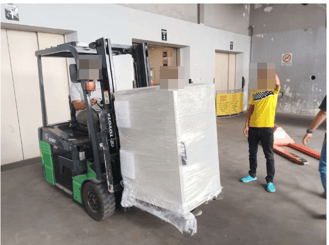
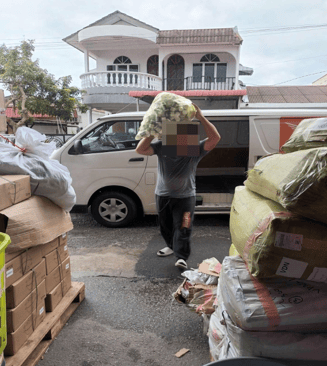
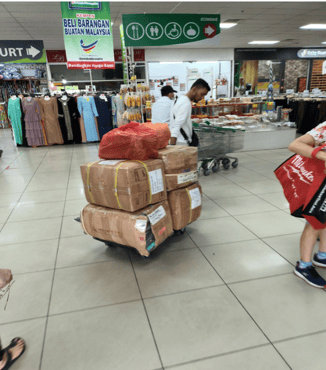
- Clear picture of delivered item (s) in a well lit area, during the unloading process
- Clear picture of the customer’s drop-off location:
- House number; if not available, then
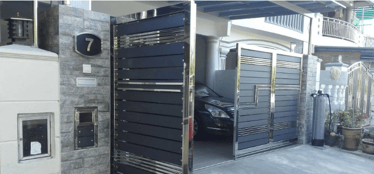
- House number; if not available, then
- Lift document with address; if not available, then
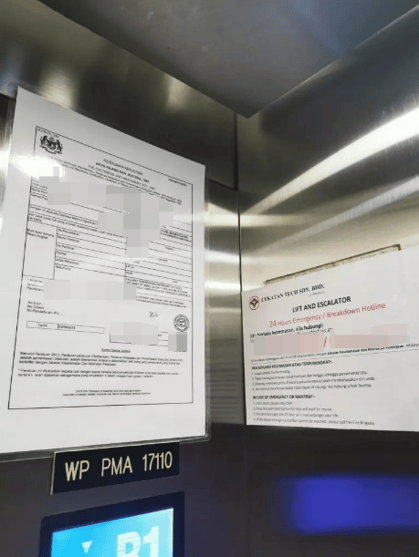
- Customer door (residential) or company logo (non-residential)
Invalid Proof
- Blurry pictures of location
Example:
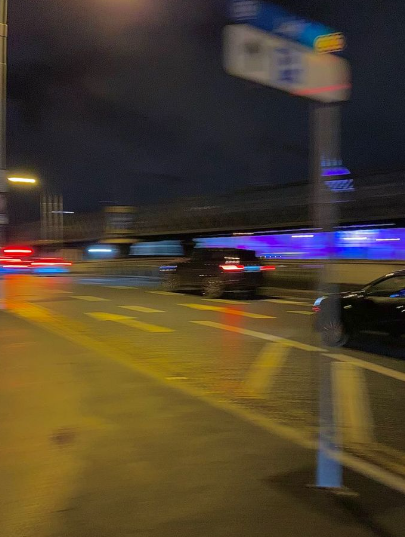
- Zoomed in / Unclear Picture of delivered item
Example:
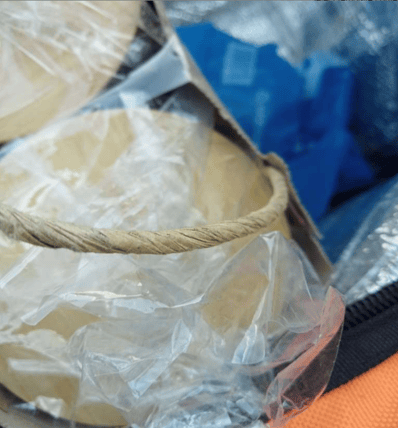
- Non-Related Pictures (no sign of actual delivered items)
Example:
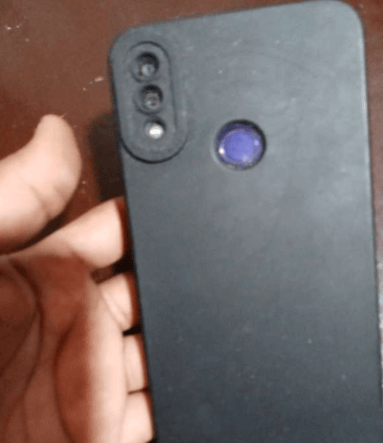
- Selfie
Example:
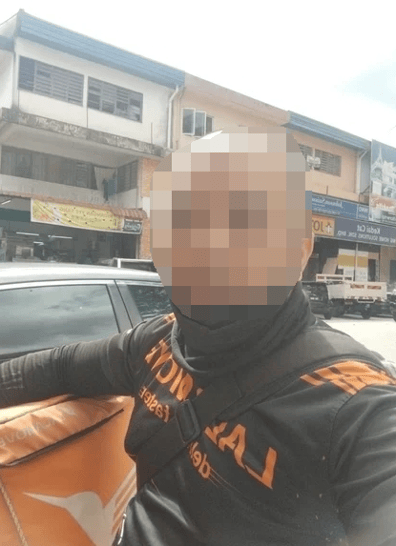
- Covering the camera / Blank screen
Example:
-3.png?width=397&height=433&name=image%20(6)-3.png)

Proof of Delivery
Should the receiver provide a sign-off once a delivery is completed?
The driver may choose to upload a legitimate signature from the customer or take Proof Of Delivery pictures.
Proof of Delivery
Is a picture of the drop-off location required?
Yes, a clear picture of delivered item (s) in a well lit area, during the unloading process is required.
Proof of Delivery
What is an acceptable picture for a drop-off location?
An indication of the customer’s drop-off location must ALWAYS be clearly visible:
- If you are delivering to a residential area, the customer’s flat or unit number should appear in the picture
- If the flat or unit number is not available, you can take the picture with the lift document containing the building address
- If the lift document does not contain the building address, you may hold the order and take a picture with the customer’s door in the background
- If you are delivering to a non-residential area or any building where you cannot go further than the reception, you can take the picture with the identifiable logo (e.g hotel name) in the background
- Pictures that do not contain any clear indication of the drop-off location might not be accepted as a valid Proof of Delivery
Proof of Delivery
Should I take a picture of the receiver?
Please abstain from taking any pictures of customers' faces or the interior of their houses.
Proof of Delivery
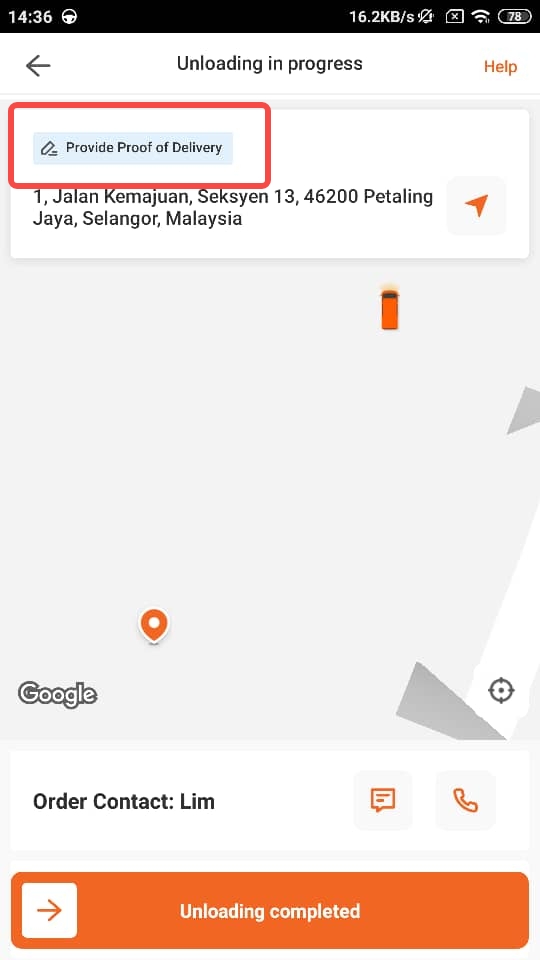
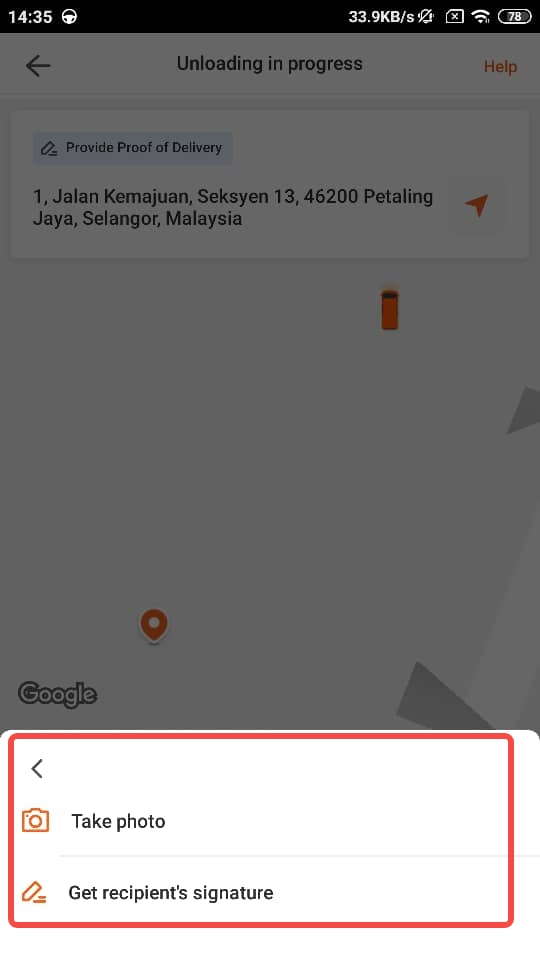
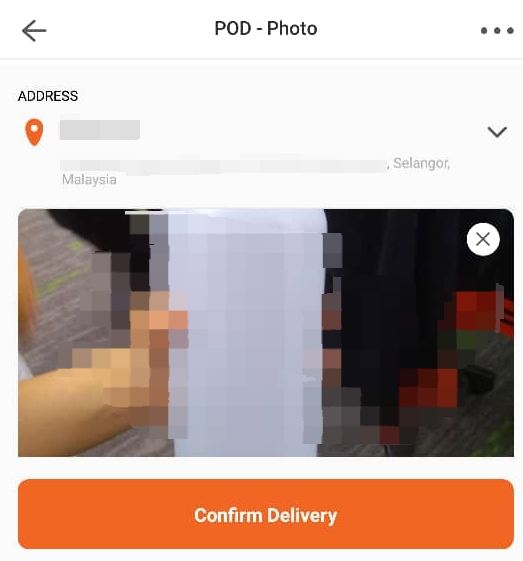
Where do I submit the POD?
Kindly follow a step-by-step guide to provide your proof of delivery on the Lalamove Application
Proof of Delivery
Why can't I submit any pictures for POD?
It is probably because the POD feature was not on from the User perspective when placing an order
For users: Kindly turn on the POD feature in your Settings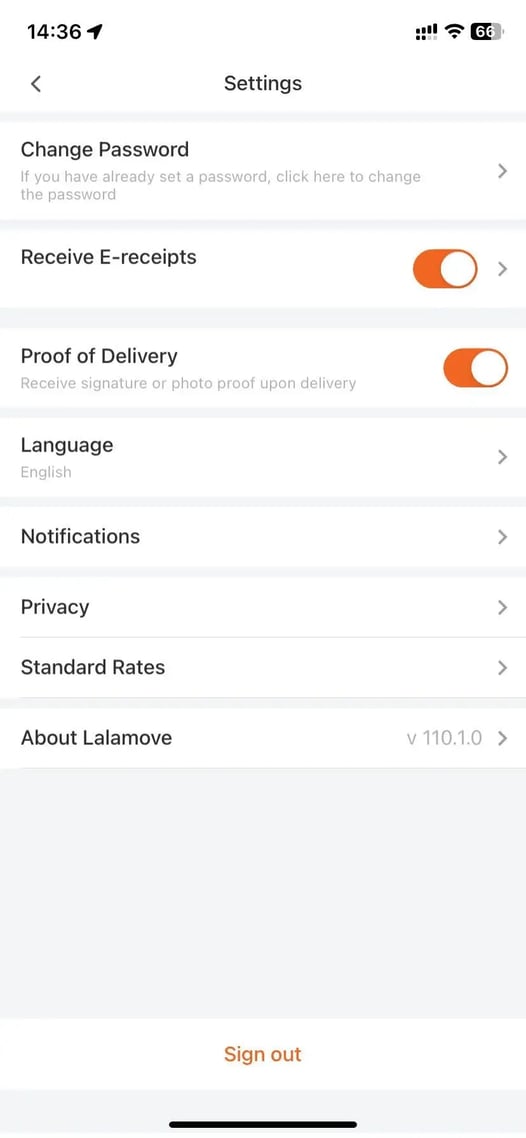
Profile and Account
I forgot my password. What should I do?
If you have forgotten your password, simply click on the "Forgot password" button and input your phone number on your registered account. We will then send you a SMS or a call for you to verify and update your password.
Profile and Account
How to reset my password?
After navigating to the “Profile” section in the app, tap the “Log Out” icon located under the “Settings” menu in the top right corner. Then, follow the “Forgot My Password” steps to reset your password. You will receive an SMS or a phone call to proceed with updating your password.
Profile and Account
How to update my mobile number?
To change your phone number, tap the “Profile” icon located at the bottom right of the screen, then proceed to the “Settings” menu in the top right corner. Select the first option, “View Personal Info,” and tap on “Mobile Number.” After completing the verification steps, you will be able to update your phone number.
Profile and Account
How to change app notifications and sounds?
On the app, tap the "Profile" icon in the bottom right corner of the screen, then select "Settings" in the top right section. Under "Sound Notifications," you can turn off sound notifications or customize notification sounds.
Profile and Account
How to deactivate my account?
Kindly reach out to our Live Chat agent for further assistance.
Documents
Can I work as a delivery partner without having a valid tax certificate?
A tax certificate is a legal requirement and is necessary for issuing invoices for services provided; therefore, it is not possible to operate on the platform without one. Lalamove Teknoloji A.Ş. is an intermediary platform that connects service providers with users and is not a direct party to the transportation service. In accordance with Articles 229 and the following of the Tax Procedure Law, it is a legal obligation for the person or entity that actually performs the service to issue the invoice. In this context, independent drivers—who personally carry out the transportation service, collect the service fee, and do not have an employer-employee relationship with Lalamove—are responsible for issuing the invoice related to the service.
Order Revenue and Mission Rewards
How can I earn through the Lalamove app?
Your earnings from deliveries completed through the Lalamove platform are determined based on the payment method selected at the time of the order. For cash payments, the fee is paid directly to you by the sender or recipient at the pickup or delivery point. For digital payments, the payment is collected from the customer and transferred to your Lalamove wallet via the platform.
Order Revenue and Mission Rewards
Where can I view my revenue from orders and missions?
Fees from wallet-paid orders and rewards earned through Lalamove are accumulated in your driver wallet. To view your balance, log in to the Lalamove Driver app and tap on the “Wallet” page located in the middle tab.
Order Revenue and Mission Rewards
How can I request a withdrawal from my Lalamove wallet?
Balances in your wallet can be withdrawn using the “Withdraw” button on the “Wallet” page. Once a withdrawal request is submitted, the funds will be transferred to your bank account on the following Wednesday. Requests made on or after Wednesday will be processed on the next Wednesday.
Order Revenue and Mission Rewards
What should I check before requesting a withdrawal?
When adding your bank details, it is important to ensure that all information is complete and accurate. In the “Bank Name” field, you must select your bank correctly. Your IBAN must be entered in the “IBAN” field as a 26-character string starting with “TR” and without any spaces.
Additionally, the full name you enter in the “Account Holder Name” field must exactly match the name registered to the IBAN. The name must be entered exactly as it appears on your bank account (including order, spelling, and spacing); abbreviations or variations are not allowed.
If the account holder’s name does not match the IBAN, or if the entered IBAN does not correspond to the selected bank name, your transaction will be rejected by the bank. In this case, you will need to update your information and submit a new withdrawal request.
Order Revenue and Mission Rewards
What are missions and how can I become eligible?
Bonus missions on Lalamove are additional earning opportunities offered during certain periods to support drivers’ income. These bonuses may be assigned based on maintaining activity or meeting specific campaign requirements, and eligible drivers are notified through the app. As bonus opportunities may vary over time, it is recommended to check the app regularly to take advantage of available missions.
Order Revenue and Mission Rewards
How can I view my available missions?
Simply log in to the Lalamove Driver app and tap the “Go Online” button located in the middle of the “Pickup” page. You can view active missions in the “Missions” section and join a mission by tapping the “Join Mission” button.
Order Revenue and Mission Rewards
How can I view the assigned mission details?
If you would like to learn more about missions, you can tap on the mission you’ve joined to view its details.
Order Revenue and Mission Rewards
What are the conditions for earning bonuses from missions?
To earn rewards from missions, deliveries must be completed accurately and in full within the specified time frame. Deliveries completed before joining a mission will not be counted towards mission progression. Therefore, we recommend ensuring that you have joined the mission before completing your deliveries.
Order Revenue and Mission Rewards
When will payments be added to my Lalamove wallet after completing a mission?
Once the mission requirements are completed, the rewards will be credited to your Lalamove wallet within 4–8 hours. To be eligible for the reward, the earned amount must be invoiced to Lalamove; otherwise, the reward will be considered invalid. Please follow the in-app communications for details regarding the invoicing process.
Sticker Program
What is the Sticker Program?
The Sticker Program is a program that offers various benefits by applying Lalamove-branded stickers to our driver partners’ vehicles.
Joining the program is easy. You can create an appointment via the Driver app by following the steps “Profile → Sticker” and have the sticker applied to your vehicle at the scheduled time. After your appointment is created, our team will contact you to share all the necessary details about the process.
Sticker Program
What are the requirements to be eligible for the Sticker Program?
To become a sticker driver, the following requirements must be met:
-
The vehicle type must be Minivan, Panel Van, or Pickup Truck
-
All required vehicle documents must be uploaded completely and accurately
Sticker Program
What are the benefits of being a sticker driver?
Drivers that are a part of the sticker program can enjoy the following advantages:
-
Additional earning opportunities within the platform
-
Regular and supportive passive income opportunities
-
Various discounts at partner locations
-
Priority consideration for project-based deliveries
-
Supportive tools and practices for vehicle usage and operations
For more details and to start enjoying these benefits, you can create an appointment through the app.